Author

Sai Rakesh Puli

Browsing

In this article, we will try to understand Auto Suppression list and when to use it.As the name suggests this List is used to suppress the emails from sending out of the Business unit or across the Enterprise with a Send Classification. Suppression Lists filter out email addresses and prevent those addresses from receiving any email from your organization.

Business Use Case 1: We can use Auto Suppression List when migrating from other Marketing platform to Marketing cloud platform. We can load all the unsubscribed/Do not Email lists into Auto Suppression List.

Business Use Case 2: We can suppress one or multiple Business units from sending Emails while allowing other Business units to send Emails to Customers/Prospects. This is useful while you have acquired a new company and you want to suppress Email at each company level instead of Enterprise Level

Navigation: Login–> Email Studio –>Admin –>Auto Suppression Configuration
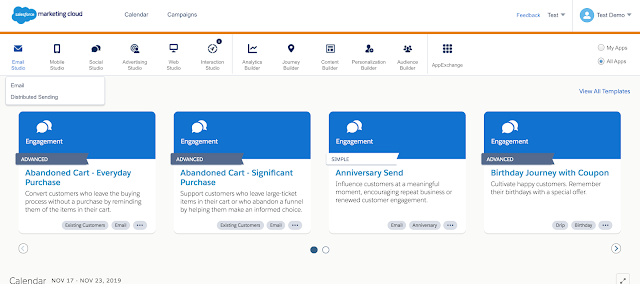
Click on Email from Email Studio
Click on Admin Tab and select Auto-Suppression Configuration
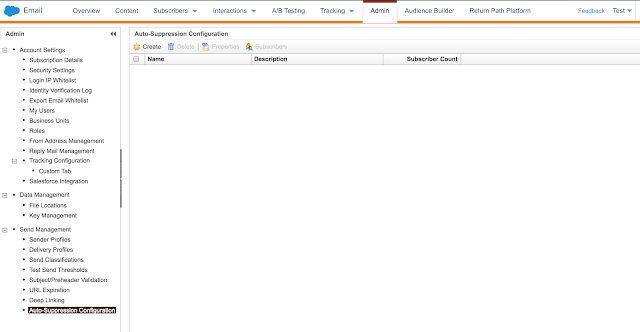
Click on Create and Enter desired list name,External key and description.
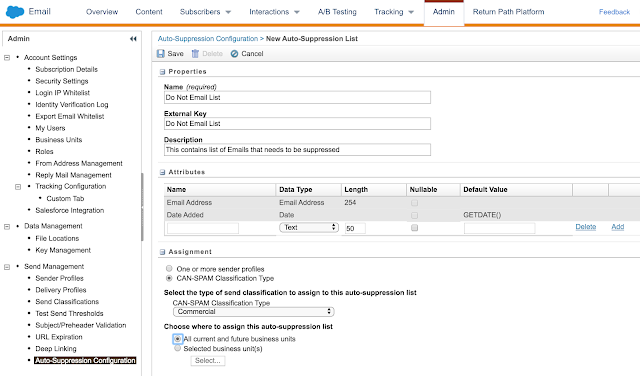
Mandatory fields: You have to provide Email Address and Date Added while storing a record. You could store other field information by creating new fields on the suppression List.

In the above image we have chosen to apply to All Current and future business units. Alternatively, we could also select “Selected Business Unit(s)” option to select desired Business units. This option is available only in Parent Business unit and is not available in child Business units.

Frequently Asked Questions:

  1. Do Emails in Suppression List count against Email sendable Limits?

Ans. Suppression List does not count against your Email sendable Limits

  1. We were asked to create records in All Subscriber Lists and then mark it as Suppressed?

Ans. You could do that by marking the record as Unsubscribed but those will be counted against your sendable Limits. Best practice is to separate Marketing cloud sends from your Legacy sends by using suppressed Lists.

  1. We have duplicate Emails with unique subscriber key. Will this suppress from sending at email address level or subscriber key level?

Ans. This will stop at Email address level and not subscriber key level. customer/prospect with their email address will not receive any email once it is added to suppression List irrespective of their unique subscriber key

  1. We have created Suppression List and should we be accessing in Automation studio/Journey builder to do the exclusion?

Ans. No you need not add this as a filter criteria to either Automation Studio/Journey builder as the system automatically excludes the emails from sending to Customer/Prospect who are on the suppression List.

  1. How can we load/add records into Suppression Lists?

Ans. You can either add a record manually or use FTP to load data into Suppression Lists by selecting the desired Suppression List.

  1. We are unable to see/select/apply to the desired Business Unit or All Business units?

Ans. You might be in the child Business unit and this option is only available at the Parent Business unit level.

In this article, We will try to understand various ways to automate the importing of data into Data Extensions using Automation Studio. Some of the business use cases include

1. When you want to load delta every night at a particular time frame or whenever the delta file is placed in the marketing cloud ftp location.

2. We might want to export all the tracking data into third party system from salesforce marketing cloud through nightly jobs

3. Import full data from external systems into the marketing cloud in realtime.

For this Demo, i am using an existing Data extension Customer_Form and we will schedule an Import process to automatically load data into Customer_Form data extension.

Navigation: Marketing Cloud Login –> Hover over Journey Builder tab –> Select Automation Studio

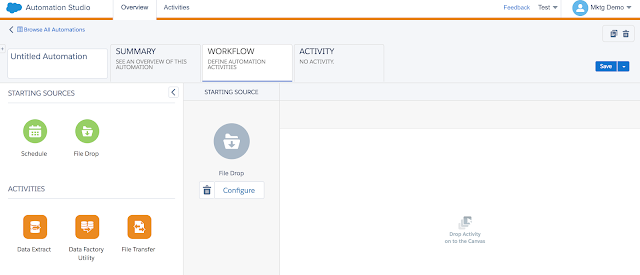
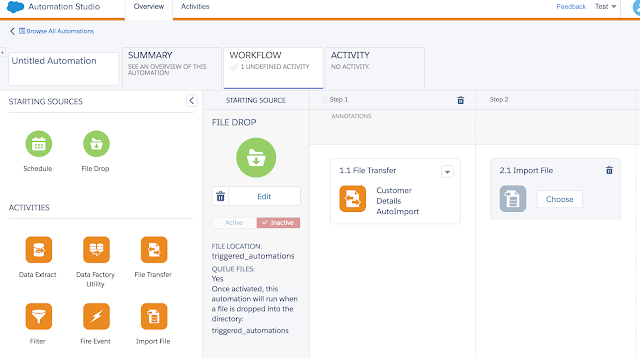
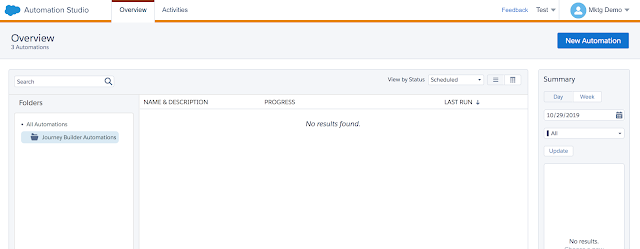
Click on New Automation to create an Automation activity. Our starting sources will be either a schedule or  File drop. For this demo we will use File drop as our starting source.

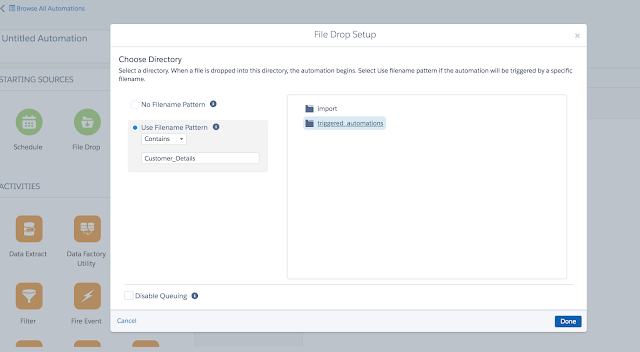
Click on configure button in the filedrop to provide file naming pattern and select triggered automations as shown below.

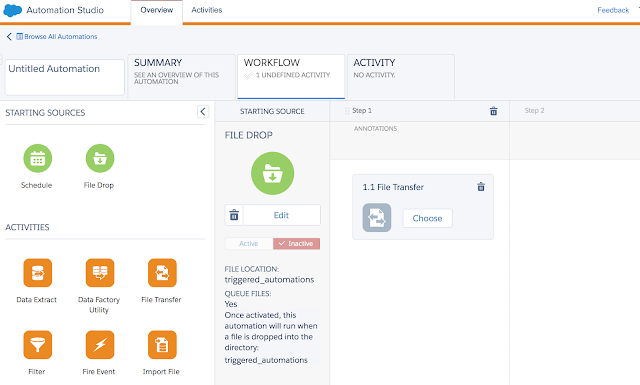
Click on Done and select File transfer from Activities

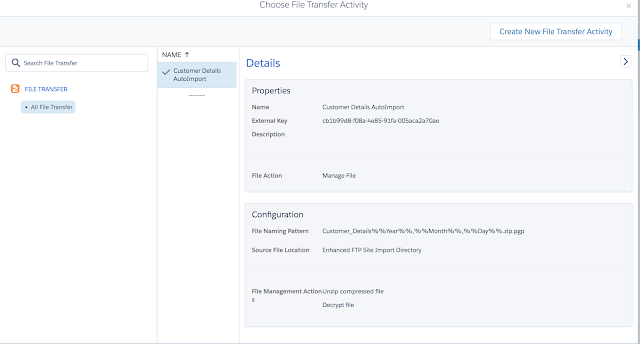
Click on choose from File Transfer and Create New File transfer activity with desired details.

Click on Done and drag Import file from Activities Palette.

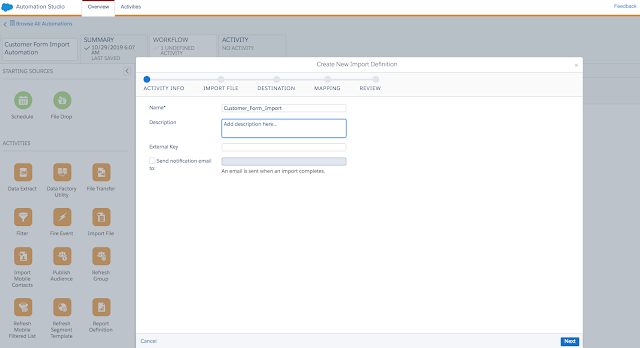
Select Choose from Import file and select the existing Import definition or select a new Import Definition.

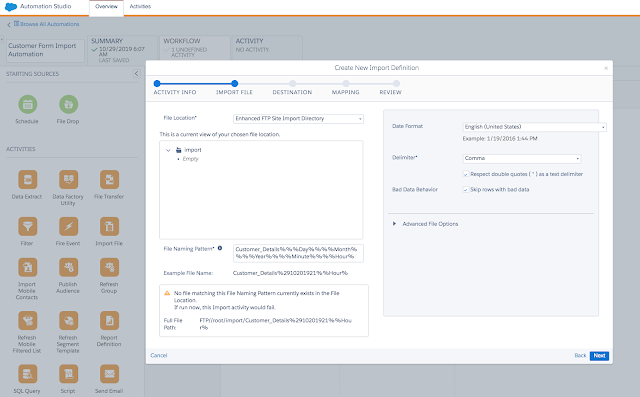
Click on Next and provide Import file format with the desired name. Select the format as shown so that it autogenerates with date and time which will help to identify the file without duplicates.

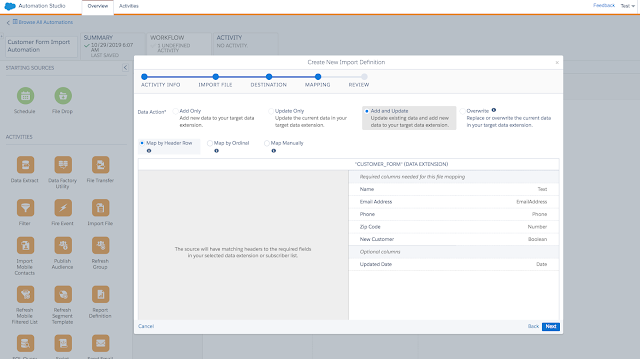
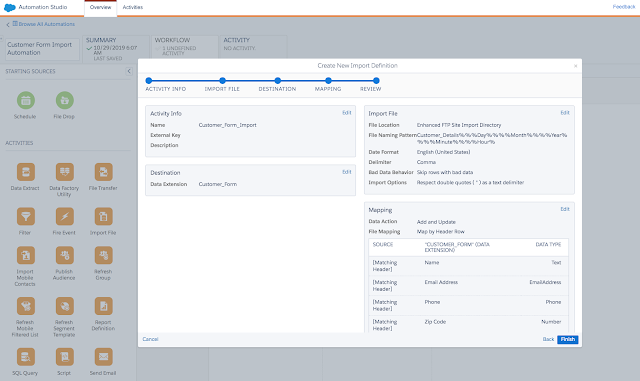
Select the desired data extension(Customer_form) from available data extensions and click on Next. In Mapping tab select desired data action such as Add only/Update only/ Add and update only/ Overwrite and Select Map by Header Row/Map by Ordinal/Map Manually.

Review the details and click on Finish.

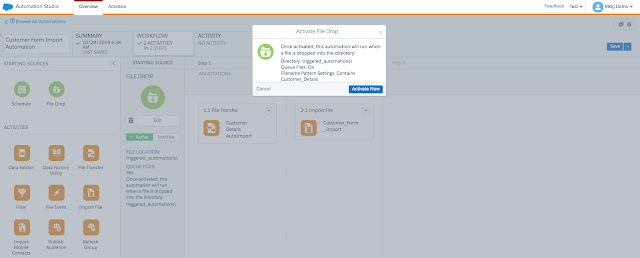
Click on Activate and this import activity will be triggered whenever there is a new file drop into ftp location.

In this article lets understand some of the nuances involved while loading data from External systems into the Marketing Cloud. Some of the questions that are always asked include how long does it take to load data into Marketing Cloud. As part of the Import process, any data file that exceeds 20 Mb has to be loaded through the File Transfer Protocol(Ftp) process.

Extraction:

The first step includes Extraction of data from sources such as Teradata/Oracle/Vertica into your internal Ftp site. This could take anywhere from few mins to a few hours depending on the file size. In general, always split the file into multiple files if it has got more number of records. It is advisable to have 6 million to 8 million records in each file and the size would be anywhere from 2 gb to 2.5 gb per file. This extraction process/time depends on the environment you are generating. If you are generating in Unix box it could take more time compared to generating in Amazon S3 server. On an S3 server it could take 1 hour to generate 10 files with 80 million rows(8 million per file).

File movement:

After the extraction, We should move the file from our ftp server to SFMC site using Filezilla/Mft process depending on the organization’s internal protocols/process. Depending on the session configuration of Filezilla/Mft process it could take an hour to transfer 20gb of data from Internal ftp server to SFMC. There might be limitations on a number of files that could be transferred with each run(3 to 5 files) depending on the organization’s settings/internal process.

Processing in SFMC:

Once the files are moved to SFMC from our internal ftp server, Run the import process to load data into desired Data extensions. Alternatively, we can schedule the import activity to occur once a file is dropped into SFMC. We can map the import activity to load data into Data extensions based on the Column header of the incoming files. This import activity could load 30 million records into data extension in 60 mins. You could monitor this file runs in Automation Studio.

Parallel Runs: SFMC does not support the parallel running of multiple files into the Same Data Extension. I assume it might be having a table lock while one of the file is processing. One Great news is SFMC supports the parallel running of files into different data extensions at once.

Frequently Asked Questions:

1. Can we have one large file instead of multiple files during extraction from Source?

Ans. You could definitely have one large file instead of multiple files. We have extracted 50 gb file and transferred it to SFMC

2. Can we reduce FileZilla/Mft processing times by using smaller files?

Ans. Its advisable to move smaller files quickly through FileZilla/Mft process rather than huge files. It took 3 hours to move 50 gb file(single file) from our internal ftp server to SFMC ftp server

3. Is there any better way to optimize  Extraction and filezilla/mft process?

Ans. In general filezilla/mft process could be designed to look at specific file formats instead of picking all the files(complete/incomplete) from the specified folder. One approach could be generating the file with a different file format so that filezilla/mft process will not pick the file until the file is complete. You could rename it once the file extraction is complete. While mft process is initiated to move to sfmc then start the extraction of other files with a different name and rename this file once the mft process has completed file transfer to sfmc.

4. How long it takes for sfmc to load data into data extension?

Ans. It could load 30 million records in an hour. This could vary based on number of columns

5. Can we load multiple files into Same Data extension in Parallel?

Ans. No, sfmc does not load multiple files into same data extension in parallel. It will queue up and load one after the other

6. Can we load multiple files into different Data extensions in Parallel?

Ans. Yes, sfmc loads multiple files into different Data extensions in parallel.

7. Can we work with Account Executive or Success Manager to Expedite the loads into Marketing Cloud?

Ans. No, Success manager could not expedite your loads into Marketing cloud.

8. Can we monitor files loads at SFMC?

Ans. You can check the file progress in the Automation studio. It will display file status/success/ Errors.

9. How can we view error records in SFMC?

Ans. You will receive an email notification once the import activity is complete with Record counts and attachment in case of errors. Configure the notification to be sent to the Distribution list instead of a single person.

10. Do you suggest partial loads before running full loads?

Ans. It is always advisable to test your file run times and data validations with partial loads(5 percent data) instead of Full loads. Your learnings from partial loads will help you save much more production time(Saving time during Extraction/Load)Note: There are many factors involved while processing files and data and run times provided here are for guidance purposes only as it could change from organization to organization based on network/server capability/Number of columns in a file/etc.

In this article lets go through some of the common data import issues that we encounter while loading data. These learnings will help you avoid Import pitfalls and save your time during development or importing of data into Data extensions.

Issue 1: We try to set the field as non-nullable in our data extension and try to import data with null values.

Solution: Before quickly changing the field value to nullable on data extension to fix the issue, analyze your data or business use case if you are ok loading the field as null or populating the data.

Issue 2: No such column name exists in Data extension

Solution:  This is one of the most common errors that is encountered by customers. While importing data you might have selected the data extension field to be mapped based on the header of the file. If there is a column mismatch on your header then you will see this kind of error. Fix your header and re-import the file.

Issue 3: Date Format Issue

Solution: Marketing Cloud supports a wide variety of Date ranges. Go through below article to see supported date formats

https://help.salesforce.com/articleView?id=mc_overview_supported_date.htm&type=5

Note: Times shown in the journey and triggered send tracking information remain in CST regardless of setting.

Issue 4: Date Time field in Marketing Cloud

Solution: In the Marketing cloud, the Date field supports both Date and Date time values. If you specify Date as January 1st, 2019 then MC defaults to 01/01/2019 00:00:00. It would be confusing initially as we have both Date and Date time fields in Sales cloud/salesforce

Issue 5: StartDate issue when bringing in Data to Marketing cloud from other systems

Solution: When you are bringing in data from other systems we commonly have the start date as 01/01/1111 if the component system does not support null in date fields. In Marketing Cloud the Start Date will start from 12/31/1772 00:00:00

Issue 6: EndDate issue when bringing in Data to Marketing cloud from other systems

Solution: When you are bringing in data from other systems we commonly have the End date as 01/01/00 if the component system does not support null in date fields. In Marketing Cloud the End Date could up till 12/31/9999 23:59:59

Issue 7: “Import Validation Error: CaseSensitiveSalesforce Error Id” while loading data into Data extension

Solution: If you have one of the columns starting with Salesforce object id (001/002/003/etc) and the length of the column is 15 digit then you get this kind of error even though it may not be a Salesforce id.  To turn off this validation work with support or add MC as a prefix to records while you work with a support team member.

https://help.salesforce.com/articleView?id=000312821&type=1&mode=1

81. How to use @future Annotation in Apex?

Future method is used to run the process in a separate thread at a later point of time(when resources are available). For example, you can use the future annotation when making an asynchronous Web service callout to an external service. Without the annotation, the Web service callout is made from the same thread that is executing the Apex code, and no additional processing can occur until the callout is complete (synchronous processing).

global class MyFutureClass {

@future static void myMethod(String a, Integer i)

{

System.debug(‘Method called with: ‘ + a + ‘ and ‘ + i);

// Perform long-running code

}

}

82. What are the different considerations while implementing future method?

  • Remember that any method using the future annotation requires special consideration because the method does not necessarily execute in the same order it is called.
  • Methods with the future annotation cannot be used in Visualforce controllers in either getMethodName or setMethodName methods, nor in the constructor.
  • You cannot call a method annotated with future from a method that also has the future annotation. Nor can you call a trigger from an annotated method that calls another annotated method.

83. When do we use Batch Apex?

When we have large volumes of data and do not require business logic to be processed in realtime we can use or implement Batch apex. We can process upto 50 million records using Batch Apex.

84. What are the different methods in Batch Apex?

Batch apex runs in Asynchronous mode and consists of 3 methods.

Start – Start method is used to query the list of records

Execute – Execute method is used to process business logic

Finish – Finish method is used to send email or call a different batch job or do nothing.

85. What is the purpose of QueryLocator in Batch Apex?

Query locator is used in Start method of Batch apex and it gives the ability to process upto 50 million records.

86. What are the different types of interfaces used in Batch Apex?

There are 3 different interfaces in Batch Apex

1. Database.Batchable

2. Schedulable

87. What is batch job chaining?

We can launch other Batchjob from finish method of the first job. This is called batch job chaining.

88. How many batch jobs can be run in parallel?

We can run a maximum of 5 batch jobs parallelly.

89. How many batch jobs can be in Apex flex queued at any given point of time?

With the Apex flex queue, you can submit up to 100 batch jobs.

90. How can we invoke batch job from Developer console?

Example: We have a batch job AccountProcessBatch that needs to be executed with a default size. Then we can use the below command.

Database.executebatch(new AccountprocessBatch());

Dev Tip 3: Execute Batchjob from Anonymous Window/Dev Console

In this article, we will learn various ways to load data into Data Extensions and some of the use cases surrounding this. We are using Customer_Form Data Extension that we have created in an earlier article to Load data in the Marketing cloud.

Let us understand various ways to load data into a data extension.

1. Manually Creating Data into Data Extension

2. Import Data into Data Extension

3. Schedule file imports into Data Extensions

4. FTP into Data Extensions

Manually Creating Data into Data Extension:

This process is mostly used when we want to have validate /test our email template using test data that are loaded into Data Extension. For this use case, we will try to manually create records in Data Extension.

Navigation: Login to MC –>Audience Builder –> Contact Builder –>Data Extensions –>Select Desired Data extension/Create Data Extension –> Click on Records.

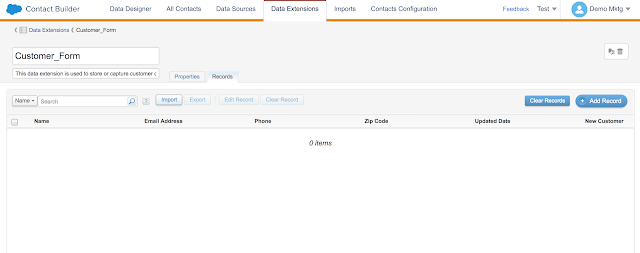
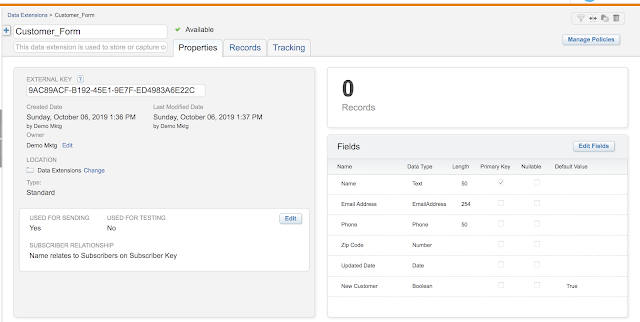
As said earlier, we are using Customer_Form Data extension to load data. Click on “Add Record” as shown below in the screen.

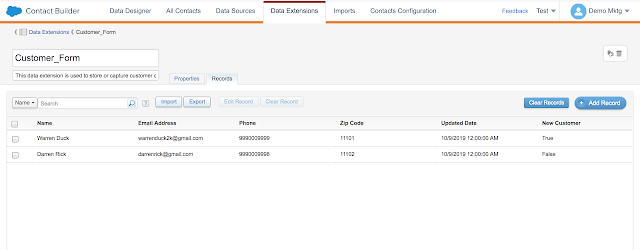
Enter desired attributes and non-nullable fields into the record before clicking on save. See below screenshot with Sample data created manually in Customer_Form Data Extension.

Import Data into Data Extension:

We will always have business scenarios to load huge volumes of data into Data extensions. These use cases can be achieved by using the Import process in Marketing cloud. You can load multiple records from csv/spreadsheet into Data extension using Import functionality.

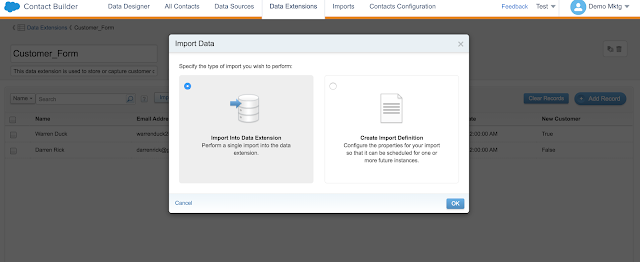
In the above(image) Customer_form data extension there is an Import button next to search and above the records. Click on the import button and select Import into Data extension and click ok.

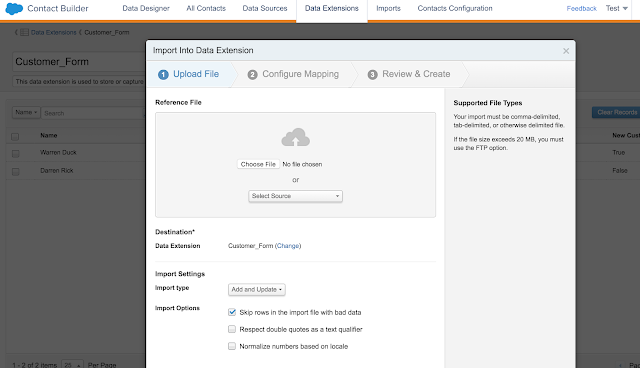
You will be redirected to upload the file as shown below. Drag and drop the desired csv file to upload the file.

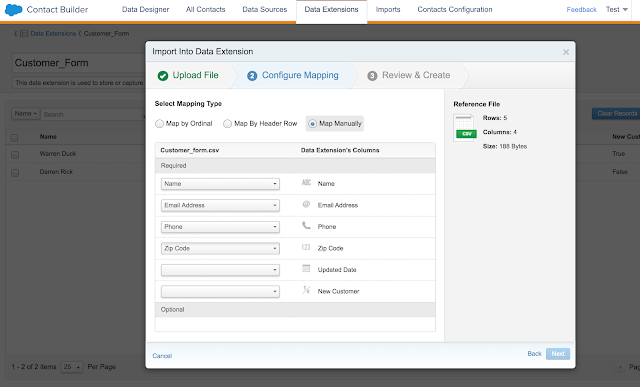
Once you upload the desired file then select the Delimiter type as comma and Import type as Add only/ Add and Update/Update Only/Overwrite. For this demo, we are selecting Add only to add the records to data extension. Click Next and it will take us to Configure Mapping screen. You can use Map by Header Row or Map Manually to map the fields on your data extension to csv file as shown below.

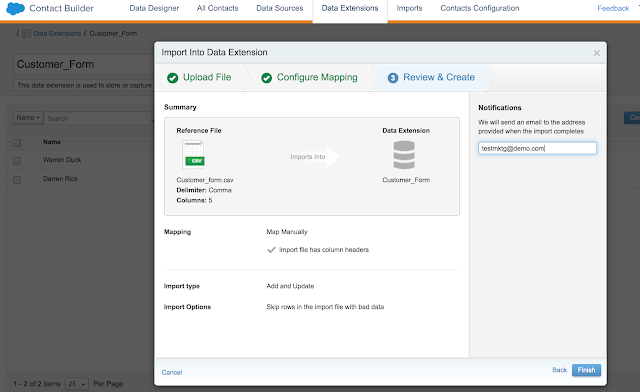
Click on Next once you map all the fields and it will redirect us to Review & Create screen. The marketing cloud gives us the ability to notify over email once the upload of data is complete. Click on Finish and you will be shown an Import progress status bar. As part of Customer_form.csv, We have uploaded 4 records into Data extension.

Note: Import process supports files with a maximum size of 20 MB. Anything beyond 20 MB file requires us to use FTP Process which we will cover it in a different article.

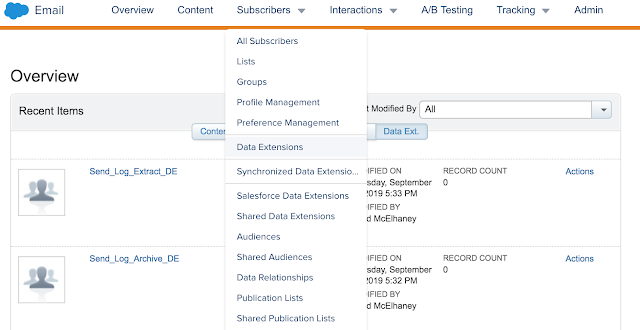
In the previous article, you learned how to access Data extension from Email studio and Audience builder/Contact builder. Let’s Navigate to Data extensions from Email Studio for Creation of Sample Data extension.

Navigation: Click on Email Studio and select Email from the Dropdown. After Selecting Emails then navigate to Subscribers dropdown and click on Data Extensions.

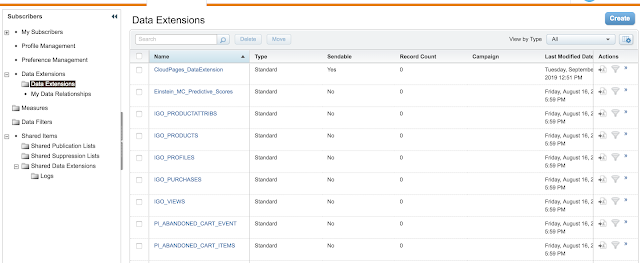
Based on your role in the Marketing cloud you will have the ability to view available Data extensions or create Data Extensions by using create a button on the top right corner. You can see the screenshot below for visualization purposes.

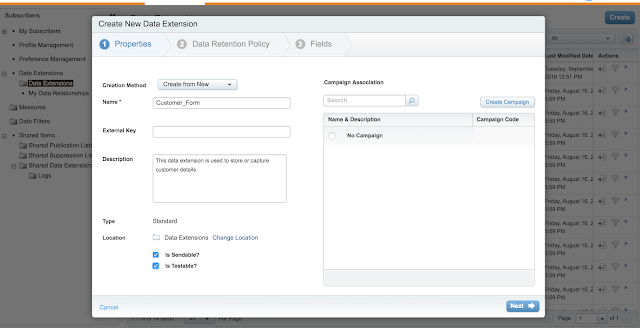
Click on Create and Select Standard Data extension for time being and let us fill other details such as Creation Method(Create from New), Name(Desired Value) and Description(Brief explanation/purpose of Data extension). Mark the Is Sendable field as true as this will help us in sending emails from this data extension. You could mark Is testable field as true if you want to use this data extension for testing purposes.

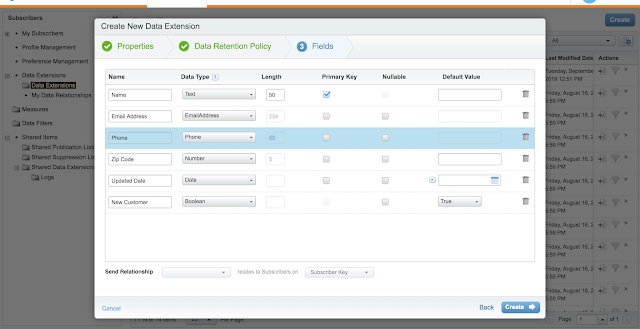
You can also create a campaign and associate this data extension as well but for this demo, we are skipping that step. Click on Next and you will be on the Data Retention policy page and by default, the value will be off. You can click the Retention setting to On and it will give you multiple options to decide on the number of days the data has to be retained. You can move on to the next step by clicking on the Next button and this will bring up Fields Page. Marketing Cloud provides you with various Field types such as Text, Number, Date, Boolean, EmailAddress, Phone, Decimal, and Locale.

Click on the below link to understand more about different data types in Marketing cloud.

https://help.salesforce.com/articleView?id=mc_es_data_extension_data_types.htm&type=5

Note: Date values generated by the Marketing Cloud use Central Standard Time

You have to select a Primary key on one of the fields and you can also select nullable against any field(other than Primary key field) if you expect the value to be Null. Optionally you can also set a default value against any desired field. Select the desired field from Send Relationship dropdown on Fields page before clicking on the Create button. Click Create button to complete the creation of Data extension in the Marketing Cloud. You will be redirected to the available Data extensions page and validate if the Data extension that you created exists in the List.

We have Successfully Created Data Extension with various field types. In the next article, we will understand various ways to populate Sample data in Data extensions.

71. What is the difference between public class vs Global class?

Public – Public class is accessible only in the corresponding namespace

Global – Global Class is accessible across the Salesforce instance irrespective of namespaces.

72. What are different access modifiers in Apex?

public/private/global

73. What is difference between with Sharing vs without Sharing?

Any class that has With Sharing will enforce the Sharing rules for the current user.

Any class that has without sharing specified or no sharing specified then it runs in the context of system admin mode/system mode.

Dev Tip 7: Difference between With Sharing and Without Sharing in Salesforce

74. What is the default value for class when sharing is not specified?

By default, every class runs in System mode or Admin mode if we do not specify any sharing keyword.

75.  What is the purpose of  extends keyword in salesforce?

A class that extends another class inherits all the methods and properties of the extended class. A class can only extend one other class, but it can implement more than one interface.

https://developer.salesforce.com/docs/atlas.en-us.apexcode.meta/apexcode/apex_classes_extending.htm

76. What is an Interface?

An interface is like a class in which none of the methods have been implemented—the method signatures are there, but the body of each method is empty. To use an interface, another class must implement it by providing a body for all of the methods contained in the interface.

https://developer.salesforce.com/docs/atlas.en-us.apexcode.meta/apexcode/apex_classes_interfaces.htm

77.  What is the purpose of final keyword?

Final variables can only be assigned a value once, either when you declare a variable or inside a constructor. You must assign a value to it in one of these two places.

78. What is the purpose of Dynamic Apex?

Dynamic Apex enables developers to create more flexible applications by providing them with the ability to:

Access sObject and field describe information

Access Salesforce app information

Dynamic SOQL and SOSL queries provide the ability to execute SOQL or SOSL as a string at runtime, while dynamic DML provides the ability to create a record dynamically and then insert it into the database using DML

79. How to access Recordtypeid dynamically without using soql query?

Id recordTypeId = Schema.SObjectType.Lead.getRecordTypeInfosByName().get(‘Record Type Name‘).getRecordTypeId();

In the Record type Name mention your desired record type Name that is available in your org.

80. How to get the sobject describe result through dynamic apex?

To access the describe result for an sObject, use one of the following methods:

  • Call the getDescribe method on an sObject token.
  • Use the Schema sObjectType static variable with the name of the sObject. For example, Schema.sObjectType.Lead.
  • Schema.DescribeSObjectResult is the data type for an sObject describe result.
    The following example uses the getDescribe method on an sObject token:

Schema.DescribeSObjectResult dsr = Account.sObjectType.getDescribe();
The following example uses the Schema sObjectType static member variable:
Schema.DescribeSObjectResult dsr = Schema.SObjectType.Account;

In this post, We will try to understand how to use a ternary operator in salesforce to reduce code. Ternary Operator acts as a short-hand for if-then-else statements.

x ?  y  : z

If x a boolean is true then the result will be y and If x a boolean is false then the result will be z.

Integer result= Condition? Valueone : Valuetwo;

Example(Ternary):

Integer currentmarketPrice = 25000;

Integer priormarketPrice = 15000;

Integer OppAmount = priormarketPrice > 15000 ? currentmarketPrice : priormarketPrice ;

If we do not use a ternary operator then we would have ended up implementing If then else logic with multiple lines of code.

Example(Without Ternary operator/If-else logic):

Integer OppAmount;

Integer currentmarketPrice = 25000;

Integer priormarketPrice = 15000;

If(priormarketPrice > 15000 )

{

OppAmount = currentmarketPrice;

} else {

OppAmount = priormarketPrice;

}

61. What are different types of collections in Apex?

Lists–A list is an ordered collection of elements that are distinguished by their indices. List elements can be of any data type—primitive types, collections, sObjects, user-defined types, and built-in Apex types.

Sets–A set is an unordered collection of elements that do not contain any duplicates. Set elements can be of any data type—primitive types, collections, sObjects, user-defined types, and built-in Apex types.

Maps–A map is a collection of key-value pairs where each unique key maps to a single value. Keys and values can be any data type—primitive types, collections, sObjects, user-defined types, and built-in Apex types.

62. What are different primitive datatypes used in Apex?

String, Integer, Boolean, Decimal, Date, Datetime

63. Is Apex Case sensitive?

Unlike Javascript, Lightning Webcomponents/Lightning Components, Apex is case Insensitive.

64. How are constants defined in Apex?

Constants can be defined using the final keyword.

Ex: static final Integer PRIVATE_INT_CONST = 200;

65. What does SOQL stand for and explain with an Example?

SOQL stands for Salesforce Object Query Language. This is used to query a list of records from the database.SOQL statements evaluate to a list of sObjects, a single sObject, or an Integer for count method queries.

List<Account> accnt = [SELECT Id, Name FROM Account WHERE Name = ‘salesforce’];

66. What are the Governor Limits on SOQL Queries?

Maximum number of SOQL queries issued in Synchronous(Trigger or Realtime) call is 100

Maximum number of SOQL queries issued in Asynchronous(Batch Apex, Queuable, Future) call is 200

67. How many records can be retrieved through a SOQL query?

Total number of records retrieved by SOQL queries is 50000

68.  What does SOSL stand for and explain with an Example?

SOSL stands for Salesforce object Search Language. SOSL always returns List of List of Sobject records.

SOSL statements evaluate to a list of lists of sObjects, where each list contains the search results for a particular sObject type. The result lists are always returned in the same order as they were specified in the SOSL query. If a SOSL query does not return any records for a specified sObject type, the search results include an empty list for that sObject.

List<List<SObject>> searchList = [FIND ‘map*’ IN ALL FIELDS RETURNING Account (Id, Name), Contact, Opportunity, Lead];

69.What is the consideration for selective SOQL Query Criteria?

  • A query is selective when one of the query filters is on an indexed field and the query filter reduces the resulting number of rows below a system-defined threshold. The performance of the SOQL query improves when two or more filters used in the WHERE clause meet the mentioned conditions.
  • The selectivity threshold is 10% of the first million records and less than 5% of the records after the first million records, up to a maximum of 333,333 records. In some circumstances, for example with a query filter that is an indexed standard field, the threshold can be higher. Also, the selectivity threshold is subject to change.

70. Define Aggregate functions in Salesforce?

Aggregate functions in SOQL, such as SUM() and MAX(), allow us to roll up and summarize data in a query. Aggregate functions become a more powerful tool to generate reports when you use them with a GROUP BY clause. For example, you could find the average Amount for all your opportunities by campaign.

AggregateResult[] groupedResults= [SELECT CampaignId, AVG(Amount) FROM Opportunity  GROUP BY CampaignId];

for (AggregateResult ar : groupedResults)  {

    System.debug(‘Campaign ID’ + ar.get(‘CampaignId’));

    System.debug(‘Average amount’ + ar.get(‘expr0’));

}